Feeds tab
In this tab, you'll find your feeds, which are the latest patches and samples shared by the other members of the community you follow. The most recent items from your feed are listed at the top, with the oldest at the bottom.
It is composed of the following elements (detailed below):
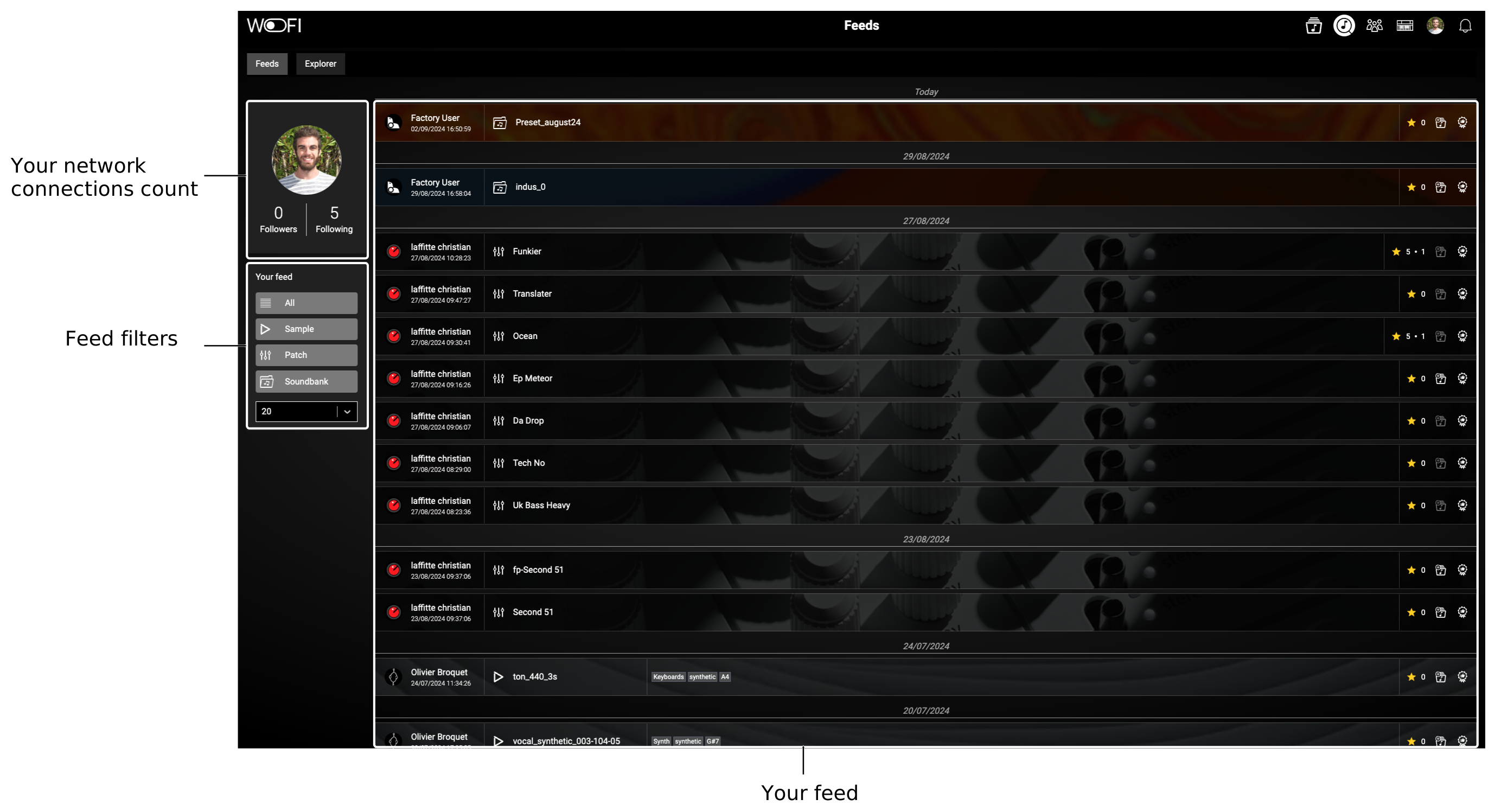
Your network connections count
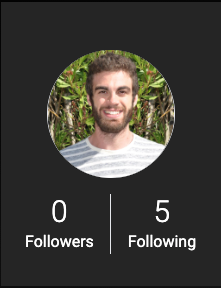
Here, you can see the number of people following you and how many you follow. Your profile picture is clickable and takes you directly to your profile.
Filtering your feed
Here, you can filter your feed by toggling each button. From top to bottom, the options are:
- All: Enables all filters.
- Sample: Filters the feed to show only samples.
- Patch: Filters the feed to show only patches.
- Soundbank: Filters the feed to show only soundbanks.
Below these options, there is a dropdown menu where you can select the number of items to display per page in your feed.
Your Feed
There are three type of item in your feed : sample, patch and soundbank.
You can recognize them by the icon before their name:
| Icon | Name |
|---|---|
 |
Sample |
 |
Patch |
 |
Soundbank |
Now, we get through what element you will find for each of them.
The samples

In the interaction section, you can do from left to right:
- Rate the sample and view the number of ratings.
- Add the sample to your library.
- Recommend the sample to another user.
The patches

In the interaction section, you can do from left to right:
- Rate the patch and view the number of ratings.
- Add the patch to your library.
- Recommend the patch to another user.
The soundbanks

In the interaction section, you can do from left to right:
- Rate the soundbank and view the number of ratings.
- Add the soundbank to your library.
- Recommend the soundbank to another user.