Profile
The Profile view allows you to modify the content of your public user page alongside notifications preferences.
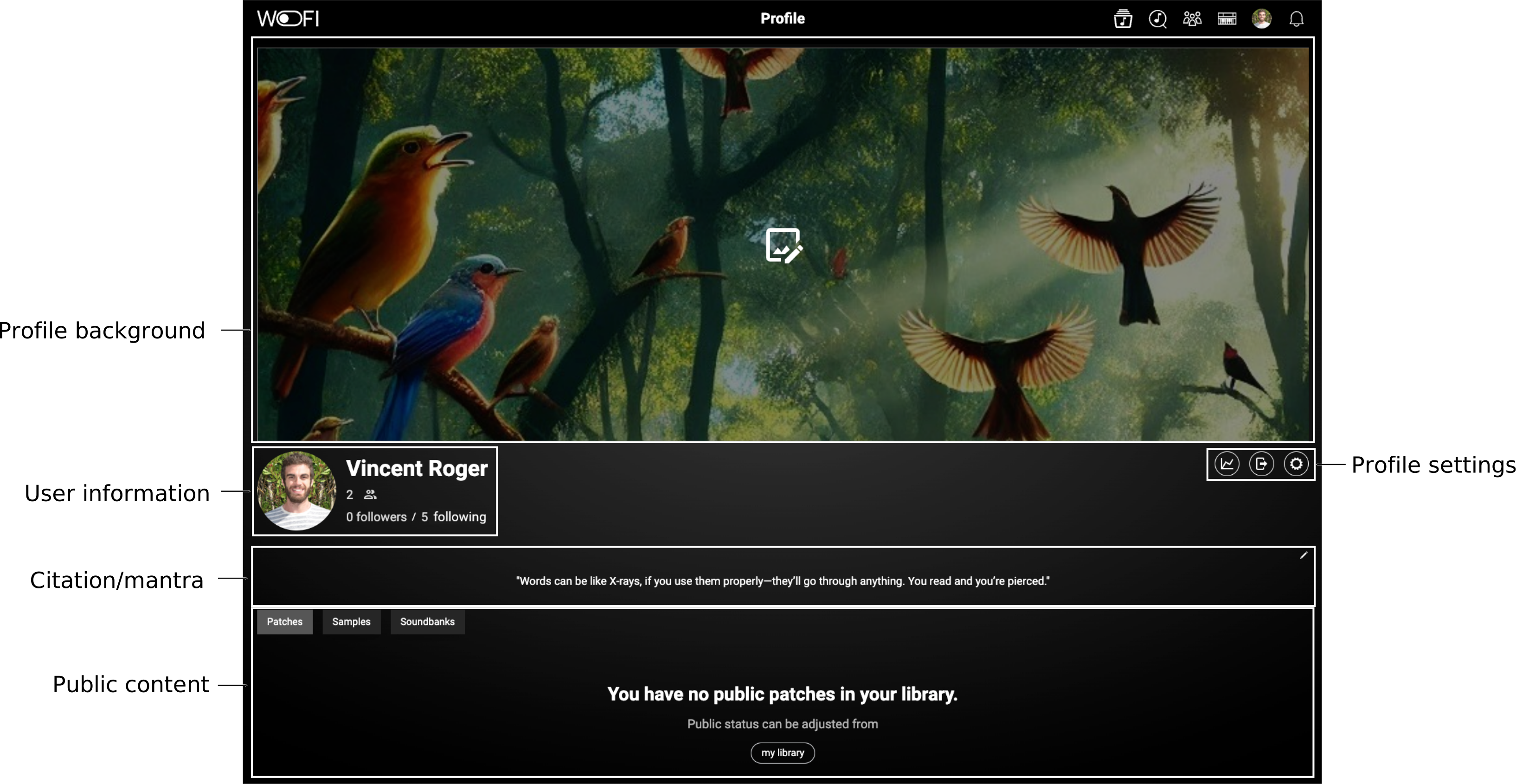
The interface includes the following elements:
Cosmetics
Each profile includes graphical elements that help you establish your identity on the platform. You can easily update your background image by clicking on it.
Every profile features a customizable quote or mantra (with a default option provided). To modify it, click on the edit button  .
.
Additionally, clicking on your profile picture allows you to change it.
User information
You also have quick access to your friends, followers, and following lists within the user information section. Click on any of these to edit or manage them.
Profile settings
| Icon | Name | Description |
|---|---|---|
 |
Dashboard | Click this button to access your dashboard. The dashboard provides relevant information about your WoFi usage, including the space you’ve used and your overall rating for the samples, patches, and soundbanks you’ve made public. |
 |
Log Out | Click this button to log out. After a confirmation screen, you’ll be logged out—useful if you need to log in from a different computer. |
 |
Settings | Access your account settings (mainly your notification settings). |
Notifications settings
In the settings, you can choose scenarios in which you want to receive email notifications:
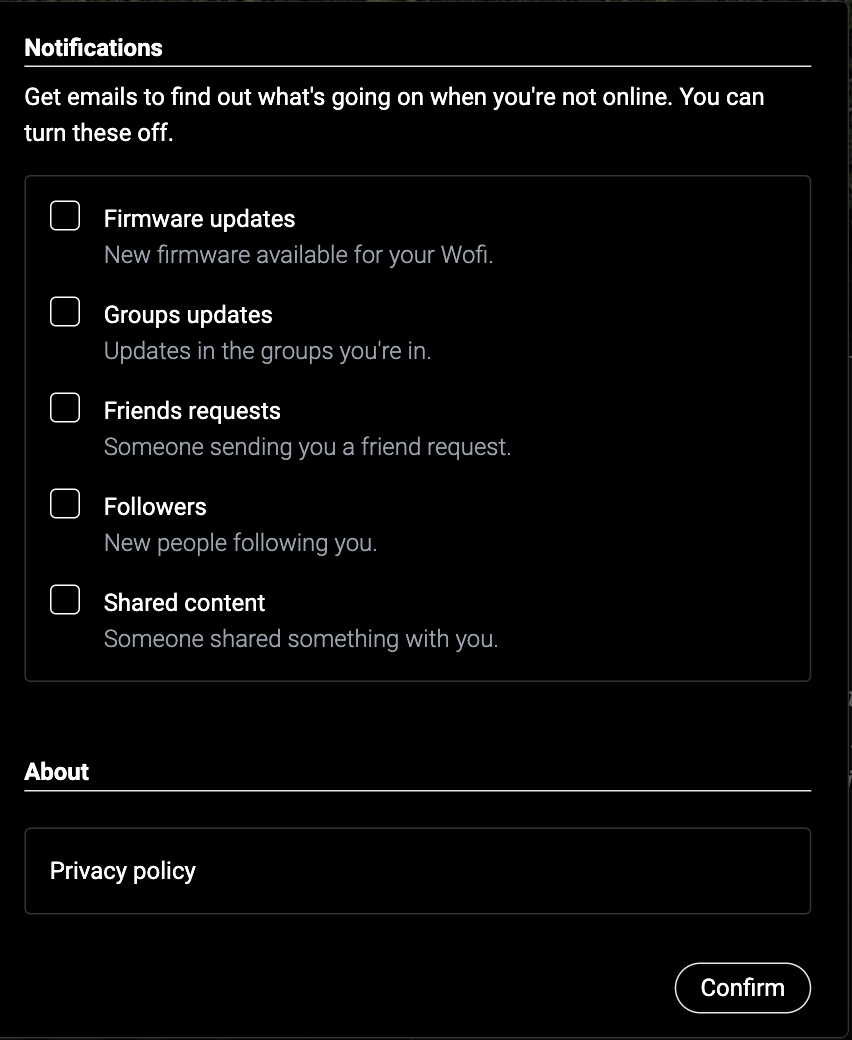
Simply check the box(es) for the notifications you’d like to receive, then confirm your selection.